IBM × U.S. Federal Client
UX Designer | August 2025 — Present
Redesigning workflow navigation for a federal agency's flood analysis tool
Identifying details, data, and sensitive information have been abstracted to respect confidentiality agreements.
TL;DR
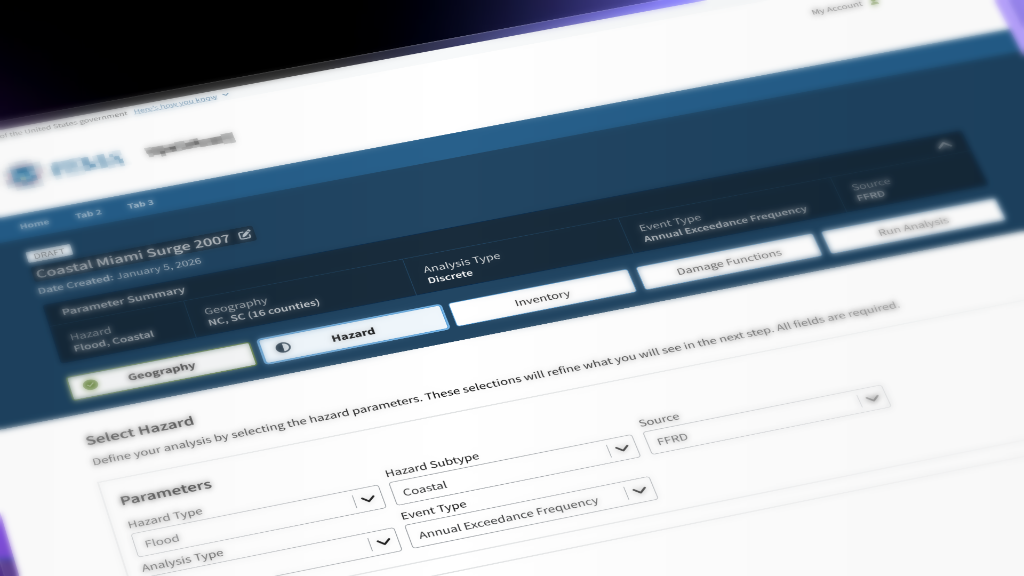
The agency's hazard analysts build flood impact models using complex datasets, but the legacy desktop tool was opaque, linear, and required significant training. I redesigned the analysis setup workflow for a new web-based platform, replacing a rigid step-by-step wizard with a non-linear tab system and persistent "workflow header" that keeps configuration visible at all times. The result: analysts can jump between steps freely, verify their inputs at a glance, and trust what they're about to run.
ROLE
UI/UX Designer
TEAM
2 Product Owners
3 Developers
3 Designers
TIMELINE
Dec '25 - Jan '26
2 months
SKILLS
Workflow Design
System Design
Interface Design
Design Systems
Accessibility
Component Design
Stakeholder Communication
TOOLS
Figma
Mural
Jira + Confluence
SHIPPED: Workflow header component and subcomponents, UX documentation, accessibility review
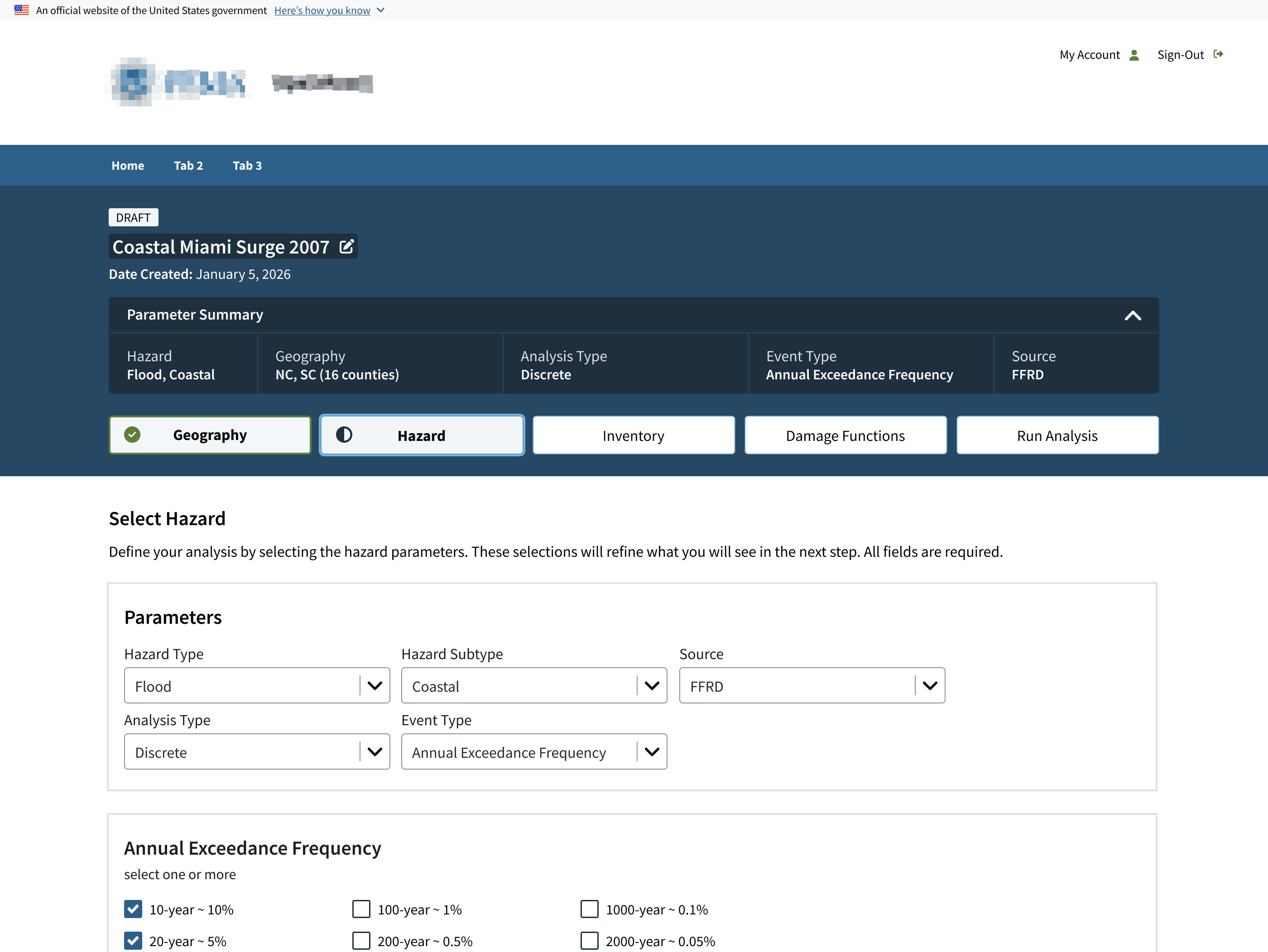
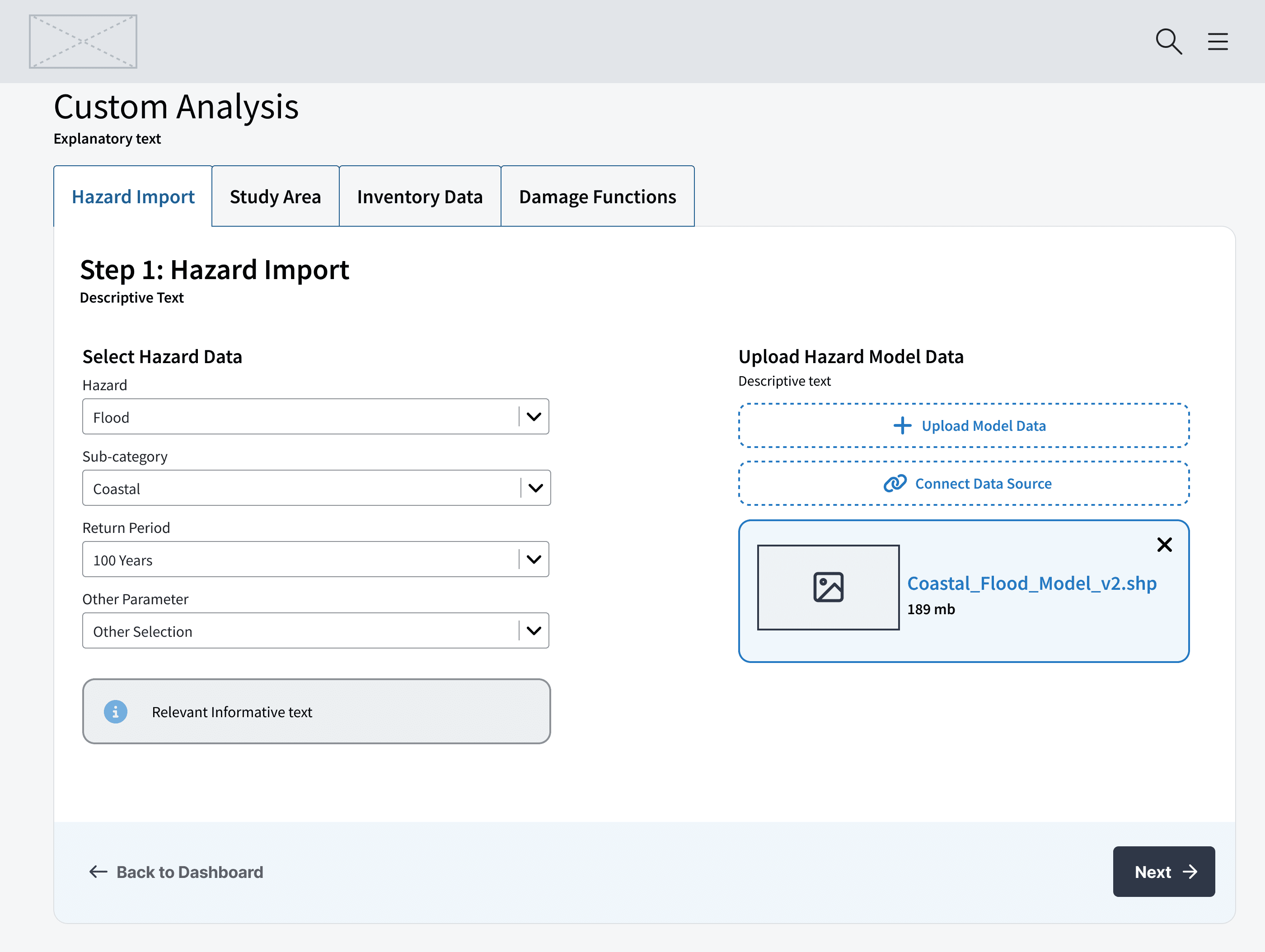
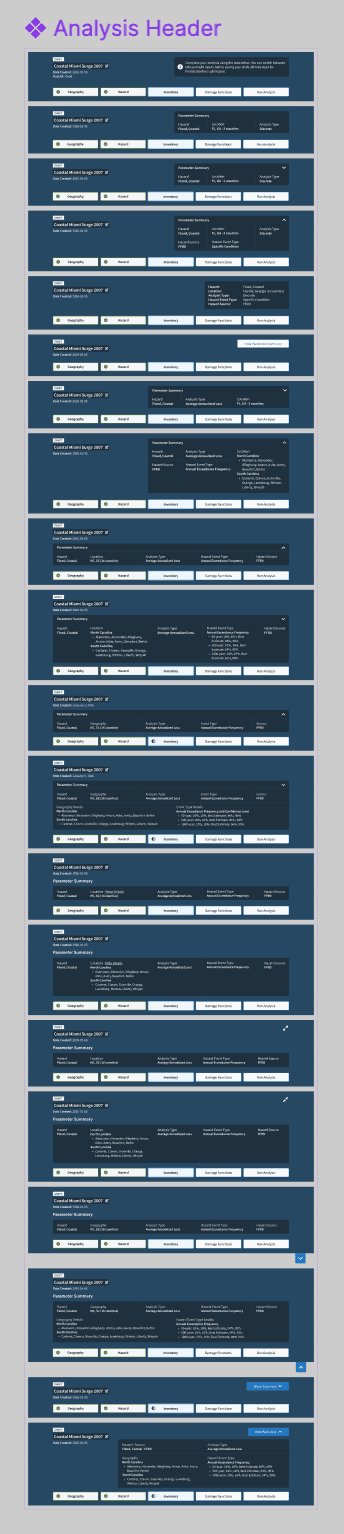
Early exploration → Final shipped design
The Problem
The existing flood analysis tool was a licensed desktop application. It was powerful, but with barriers:
- High cost of entry: Specialized training, expensive licenses, IT overhead
- "Black box" perception: Analysts struggled to explain their methodology because inputs and assumptions were buried across screens
- Linear lockstep: The workflow forced users through steps in order, even when they needed to revisit earlier choices
The agency was building a new open-source, web-based alternative. My job was to design how analysts move through analysis setup and make sure they could do it confidently, flexibly, and without losing track of what they'd configured.
My Role
The design team of three split ownership across the platform's major surfaces. I owned the end-to-end workflow navigation layer: how analysts move between steps and track progress before running an analysis.
Specifically, I was responsible for:
- Workflow navigation architecture: How users move between the five major setup steps
- Designing the persistent workflow header: The component that anchors users and surfaces key parameters
- Research synthesis: Translating workshop findings into actionable design principles
- Accessibility review: Ensuring the navigation met Section 508 and USWDS standards
Research Synthesis: Key Analyst Pain Points
Our team conducted a collaborative workshop with the product owners and a group of 4 hazard analysts from the agency. We focused on pain point mapping using Mural. My role was synthesizing the raw workshop outputs into design-relevant insights.
Learning curve
"It takes forever before someone can run an analysis independently."
Trust issues
"When results look weird, I don't know if it's the data or something I configured wrong."
Constant iteration
"I'm always going back, new data comes in, someone asks a question, I realize I picked the wrong boundary."
Opaque methodology
"I can't explain why the model produced this number."
Key Behavioral Insight
I expected analysts to want clearer instructions at each step. What I found instead:
“Analysts don't complete setup in order. They jump around, checking geography against hazard data, and revisiting damage functions when something looks off.”
A traditional linear wizard would fight their real workflow. Analysts needed freedom to move and confidence that nothing got lost along the way.
The Solution: Workflow Header + Tab Navigation
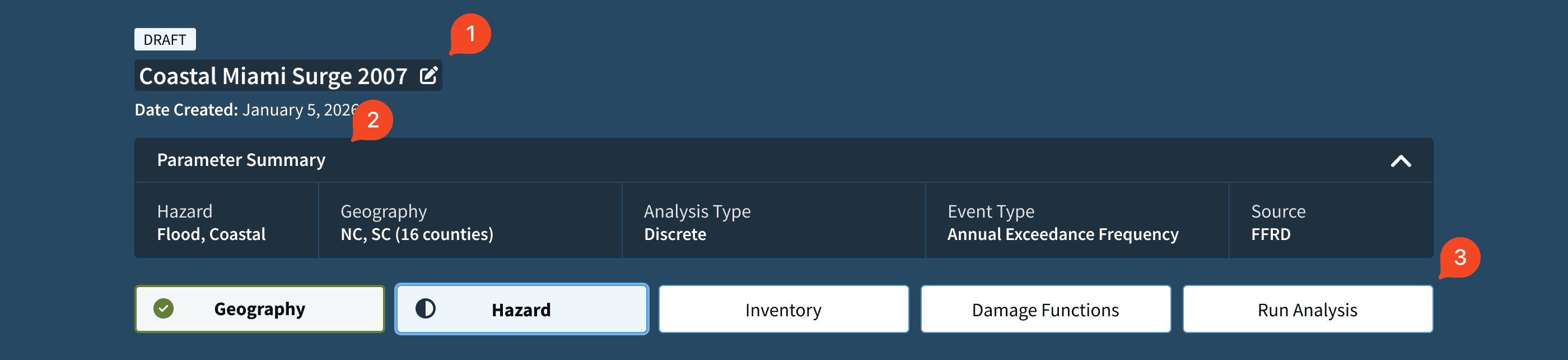
The workflow header is built from three custom subcomponents:
1. Editable Inline Text Field
Analysts often start with a working title and refine it as the analysis takes shape. The analysis name ("Coastal Miami Surge 2007") uses a custom inline text field that lets analysts rename their analysis without navigating away or opening a modal.
2. Parameter Summary (Collapsible)
Displays five critical parameters at a glance: Hazard, Geography, Analysis Type, Event Type, and Source. The chevron toggle allows analysts to collapse the summary when they need more vertical space for the map or step content, while keeping it one click away for verification.
3. Smart Tab Variant with Progress Indicators
The tab bar uses a custom variant I built to communicate step status without adding clutter:
- Checkmark (green): Step is complete (Geography)
- Half-circle indicator: Step is in progress/partially configured (Hazard)
- No indicator: Step not yet started (Inventory, Damage Functions, Run Analysis)
Information Hierarchy
- Identity (top): What analysis is this?
- Configuration (middle): What are my inputs?
- Navigation (bottom): Where am I, what's done?
An analyst can orient themselves in under 3 seconds without clicking anything.
Key Tradeoff - Density vs. Scannability
The PO initially wanted the parameter summary to show many more parameters, but I pushed back:
- "If everything is highlighted, nothing is highlighted. So let's focus on the 5 parameters analysts actually check most often"
Resolution: Shipped a collapsible summary with a curated "at-a-glance" row and full detail on expand.
Design Process
Discovery & Framing
After synthesizing the workshop findings, I mapped the five analysis setup steps against analysts' described workflows.
Exploration
I explored navigation patterns in low-fidelity wireframes:
- A traditional step wizard —> Too rigid
- Sidebar navigation —> Shrunk the main working area of the page
- A horizontal tab bar with a persistent header —> Just right!
The tab + header approach won because it preserved the full content area while keeping progress and configuration visible.
Iteration & Refinement
We ran a total of ~4 working sessions with the POs, using Figma prototypes to walk through analyst scenarios. These sessions drove most of the refinement, including the collapsible parameter summary and the progress indicators.
Outcome
- Stakeholder validation: The product owner highlighted the parameter summary and non-linear navigation as a significant improvement over the legacy workflow, noting it directly addressed analysts' top pain points from discovery workshops.
- Reusable navigation pattern: The workflow header was designed to be extensible, with documentation enabling other designers and future teams to apply the pattern to other program applications.
- Section 508 compliant: The navigation passed an internal accessibility review against USWDS and Section 508 standards, including keyboard navigation and screen reader compatibility.
- Implemented into production codebase: As of now, ~80% of the workflow header component and tab navigation system were built by the development team, closely matching the design spec.
What I'd Do Next
- Onboarding affordance: For first-time users, consider a subtle guided tour that respects the non-linear structure while orienting them.
- Step-level validation feedback: Surface errors or warnings in the header so analysts know if a step needs attention before they run.
- Earlier lightweight validation: If I could revisit the process, I would have pushed to run a moderated walkthrough with 2–3 analysts mid-design rather than relying primarily on PO feedback sessions. The POs were excellent proxies, and one was an analyst, but increased direct analyst input during the exploration phase would have increased my confidence in the parameter summary hierarchy earlier.